
Remote MCP Integration (Claude Desktop Example)
Remote MCP is for agents that don’t run on your laptop. If you are integrating FluxA with hosted products like Claude Desktop (or similar tools that support MCP over the network), this is the path that lets those agents reach FluxA’s tools.
When to use Remote MCP
Use Remote MCP if:
- your agent runs in the cloud or inside a third‑party product and cannot reach a local MCP server, or
- you want a single, shared MCP endpoint that multiple agents and services can connect to.
Step 1: Create an agent (OAuth ID & Secret)
Every remote client authenticates via an agent in FluxA. That agent corresponds to an OAuth‑style pair:
agent_id– the Agent OAUTH ID, andtoken– the Agent OAUTH Secret.
To create one:
- On the Remote MCP tab, click Create OAuth ID and Secret.
- In the Create AI Agent Access Token modal, fill in:
- Email – this is auto‑filled from your login (read‑only),
- Agent Name – for example
Claude Desktop – John's MacBook, and - Client Info – for example
Claude Desktop on macOS 14.1.
Optionally tick “Authorize this agent to use my wallet” so it can start spending immediately.
- Click Create Agent.
- On success, you’ll see a confirmation screen containing:
agent_id– the OAuth ID / Agent ID, andtoken– the OAuth Secret.
Treat agent_id and token like credentials: store them securely, and don’t paste them into logs or code repositories.
Step 2: Configure Claude Desktop with Remote MCP
With an agent_id and token in hand, you can configure Claude Desktop to talk to the FluxA remote MCP server directly from your machine.
Open Settings -> Connectors -> Add custom connector, and click Advanced settings, and fill the information you got from the FluxA agent creation:
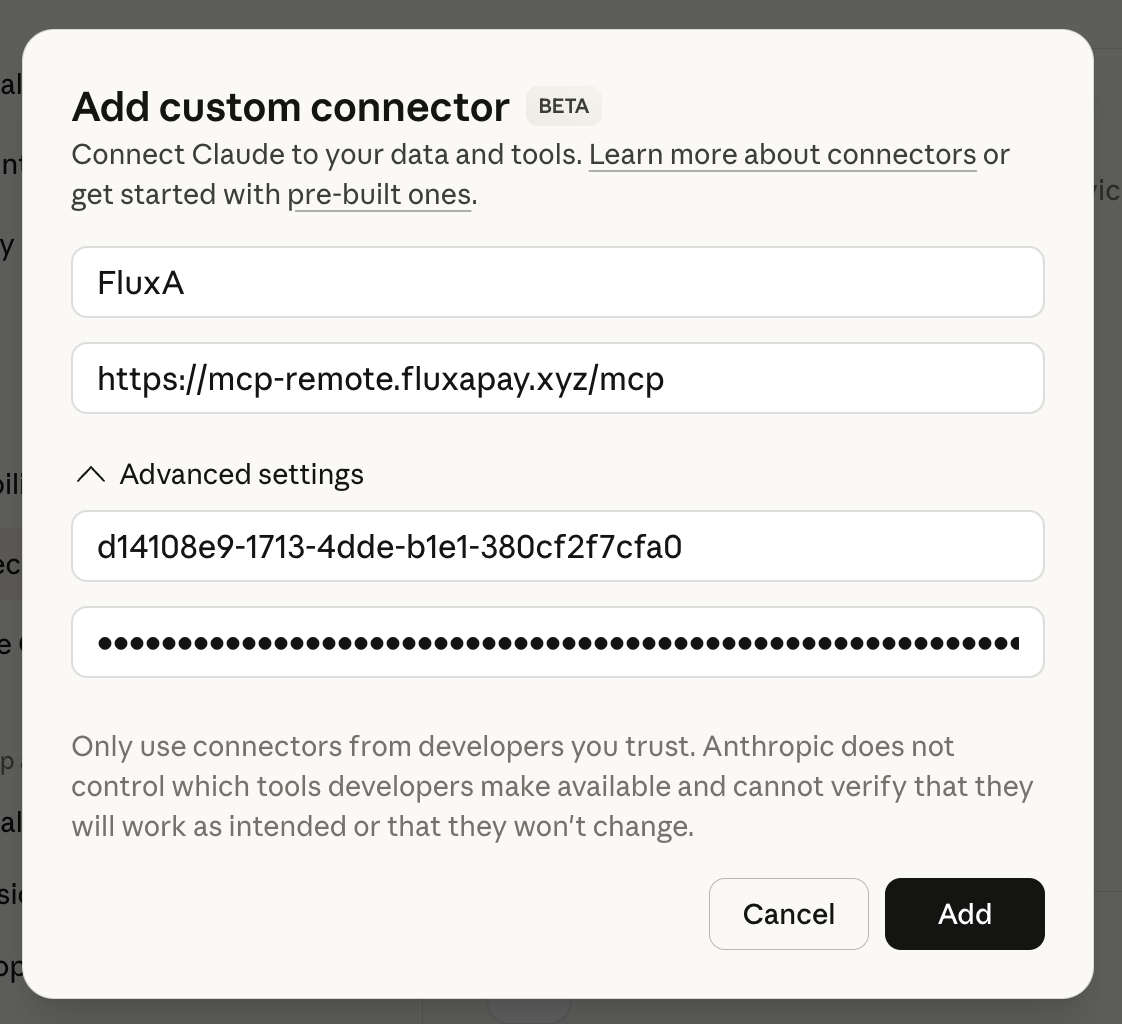
Where:
https://walletapi.fluxapay.xyz/mcpis the FluxA remote MCP endpoint.- OAuth ID & OAuth Secret are the agent id & token you just got from the agent creation page.
Once configured, click the Add button, Claude Desktop will ask you to authorize the agent first (sometimes the connector window will pop up again after clicking Add button, you can just close it).
If the remote mcp server has been successfully added, you might see a disconnected connector in your list, but no worries, it just needs to be authorized first (you can click the Connect button besides it).

After you authorized the agent, then the connector should be connected. Then you should be able to see the tools.

Lost tokens and regeneration
For security, the full token is only shown at creation time. If you lose it later:
- create a new agent on the Remote MCP tab or from the AI Agents page,
- update all client configurations to use the new
agent_idandtoken, and - remove or disable references to the old agent to avoid confusion.
If the Remote MCP tab keeps showing “Token is required…”, it usually means:
- the token field is empty, or
- the value was cleared or pasted incorrectly.
In either case, paste the correct token again or create a new agent and use its token.