
FluxA Wallet Overview
FluxA Wallet makes it possible for AI agents to hold balances, pay for API usage, and respect user‑defined spending rules, all from a single dashboard the user controls. This page gives you enough context to feel comfortable in the app before you dive into specific integrations.
What you can do (at a glance)
- Top up your wallet with USDC (fiat on‑ramp or on‑chain deposit).
- Transfer USDC out to a Base Mainnet address you control.
- Create, authorize, and revoke AI agents that can spend on your behalf.
- Review and approve one‑time payment requests.
- Create host‑scoped recurring policies with limits (monthly, per‑tx, daily amount/count, min interval, expiry).
- Approve outbound payouts initiated by an agent, and track their status.
- Inspect transactions and agent activity for auditability.
Why FluxA Wallet
Most agents today can talk to APIs, but they still need a human in the loop to actually pay for what they use. FluxA turns that into a first‑class capability: users fund a wallet with fiat or stablecoins, delegate spending power to specific agents, and set clear guardrails around where, how often, and how much those agents are allowed to spend. When an agent hits a service that responds with HTTP 402 or X‑402 metadata, it doesn’t stop and prompt the user; it forwards the bill to FluxA. FluxA checks the request against the user’s policies, signs an authorization if everything is within bounds, and lets the upstream service settle the charge. From the agent’s point of view, payment becomes just another API call instead of a blocking, manual step.
Explore the dashboard: balances and agents
Before wiring FluxA into a client or API, it helps to understand two areas of the dashboard you’ll use most: Home (wallet) and AI Agents.
Balances and top‑ups
On the Home page, the Total Balance card shows your USDC balance. You can fund it in two ways:

- Buy (fiat deposit)
- Click Buy on the Total Balance card.
- Follow the hosted flow to choose an amount and payment method.
- When the flow completes, your balance updates on the same card.
- Add (on‑chain deposit)
- Click Add on the Total Balance card.
- A modal shows your wallet address and a QR code.
- Send USDC from any compatible wallet to that address on Base Mainnet. Once the transaction has been confirmed on‑chain, the balance will be updated.
Transfers out
To move funds back out of FluxA:
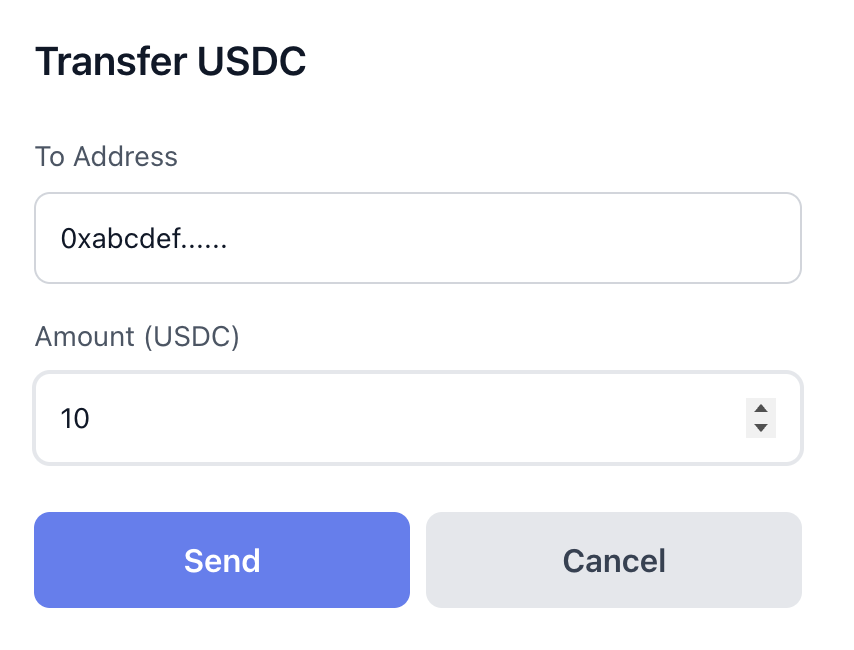
- Click Transfer on the Home page.
- In the modal, enter the destination address (must be a valid Base Mainnet address) and amount.
- Click Send. FluxA wallet will transfer the specified amount of USDC to your Base Mainnet wallet.
Managing agents
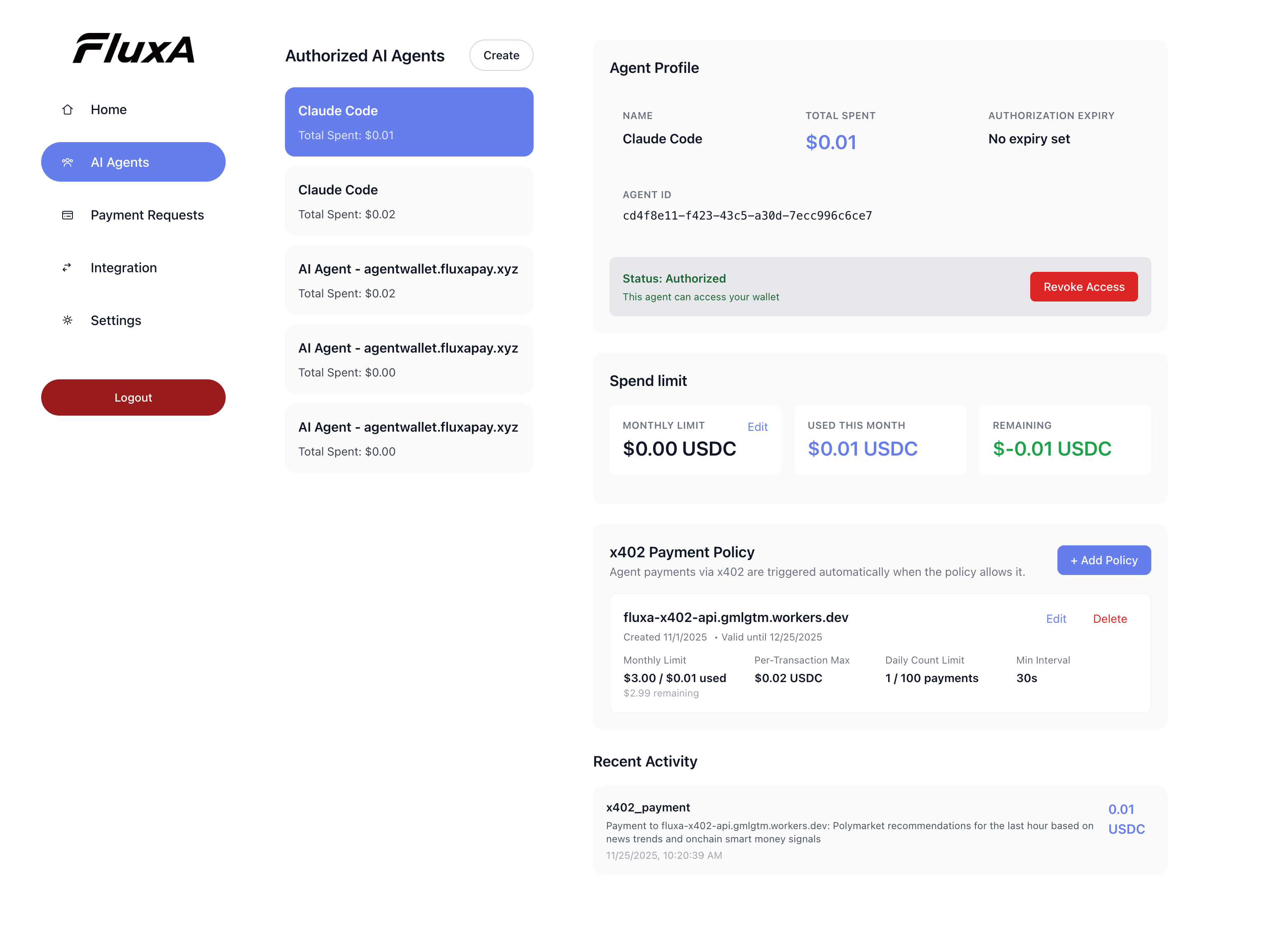
The AI Agents tab is where you decide which agents are allowed to spend on your behalf and under what conditions.
- Create an agent
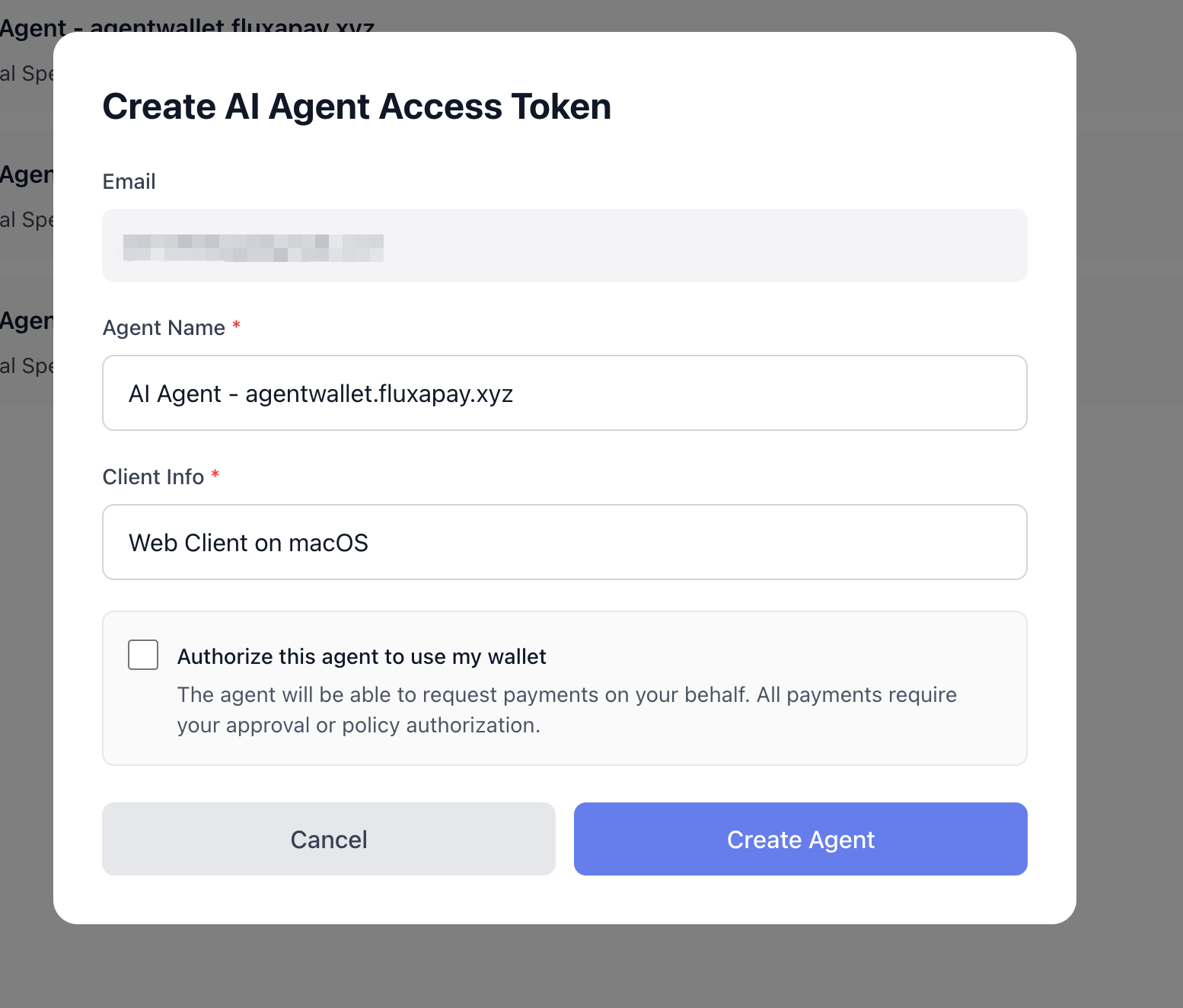
- Open AI Agents from the left navigation.
- Click Create in the top‑right.
- In the modal, fill in Agent Name and Client Info, and optionally tick “Authorize this agent to use my wallet” so it can start spending immediately.
- Revoke access
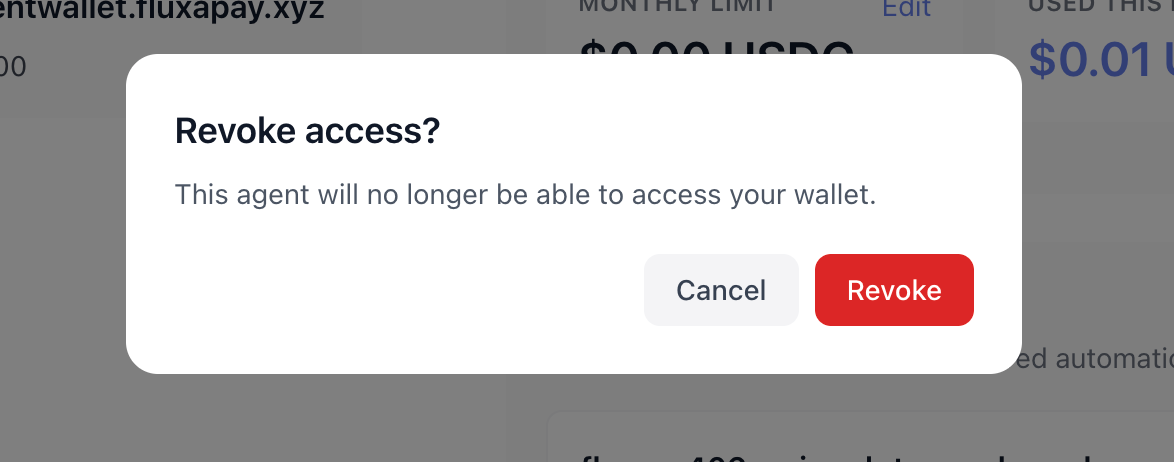
- In the agent list, click an agent to select it.
- In the details panel on the right, click Revoke access. After confirmation, that agent can no longer initiate new payments.
- Configure x402 payment policies
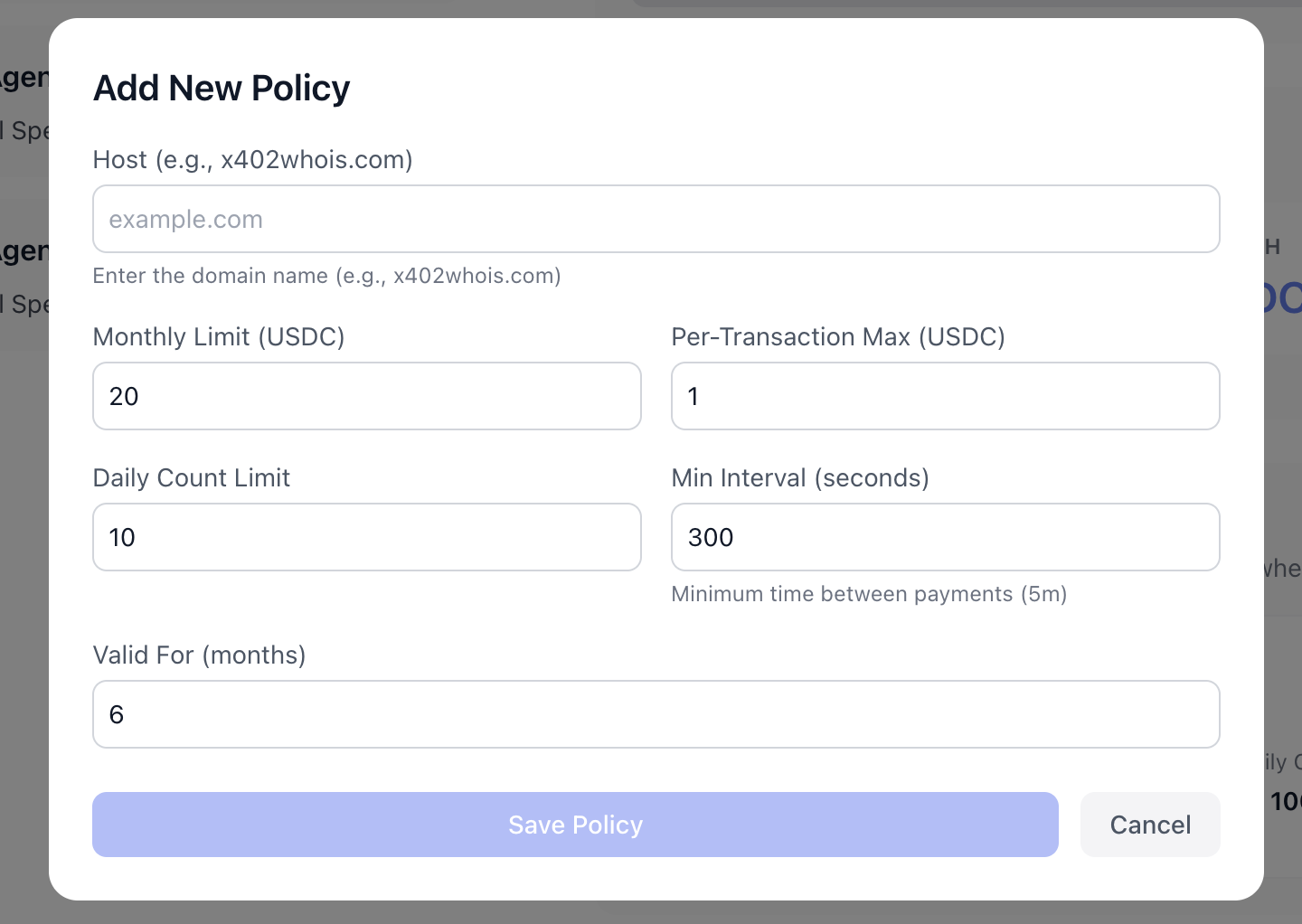
- In the selected agent’s details, locate the x402 Payment Policy section and click + Add Policy.
- You can set host, monthly limit, per‑transaction maximum, daily count, minimum interval, and validity window.
- Edit or delete policies later as you learn more about the agent’s behavior.
Authorizations and Policies
FluxA supports two ways to allow payments:
- One‑time authorization: approve a single payment request; once used or expired, it cannot be reused.
- Recurring policy: create an automatic, host‑scoped rule so future matching payments are approved within configured limits.
Key policy fields you can tune per host:
- Monthly limit: maximum total spend per calendar month for this host.
- Per‑transaction max: maximum spend for any single payment.
- Daily limit and count: cap the total amount per day and/or number of payments per day.
- Minimum interval: enforce a cooldown between payments (in seconds).
- Valid until: date/time after which the policy stops applying.
Resets and expiry:
- Daily counters reset once per day; monthly counters reset at the start of each month.
- One‑time authorization links expire after a short window; typical flows use 5–10 minutes.
Common denials and what to check:
- Per‑transaction limit exceeded → raise the per‑tx cap.
- Daily or monthly limit exceeded → raise limits or wait for the next reset.
- Policy expired or disabled → extend validity or re‑enable the policy.
- Payments too frequent → increase or remove the minimum interval.
Payments and Risk prompts
Sometimes you will see prompts such as “Authorization required” or “Manual signature required”. These appear when:
- No matching policy exists for the host (needs one‑time approval or create a policy).
- Risk controls require extra confirmation, typically for unusual amounts or recipients (manual signature).
If prompted, open the provided link, review details, and approve. Links expire; if a link has expired, re‑initiate the flow from the agent.
Payouts (send funds out)
Agents can initiate payouts to external addresses; you’ll be asked to approve them in the dashboard.
- You’ll see an “Authorize payout” page with amount, recipient, token, and expiry.
- After approval, FluxA signs and broadcasts an EIP‑3009 authorization on Base; status progresses through: pending_authorization → authorized → signed → broadcasting → succeeded/failed.
- You can monitor payouts in your account and drill into details if something fails (retries may occur automatically for transient errors).
Integration modes at a glance
Once you are comfortable funding the wallet and managing agents, you can decide how your agents will talk to FluxA. The Integration tab surfaces four paths, tuned for different environments:
Quick Start – for trying the full flow with almost no setup.
- You copy a pre‑built prompt, paste it into Claude Code (or a similar IDE), and watch FluxA handle a 402 → payment → retry loop end‑to‑end.
- Ideal when you want to feel how the system behaves before touching any config files or code.
Local MCP – for local agents and developer tooling.
- FluxA runs as an MCP server reachable from your machine.
- Clients like Claude Desktop, Claude Code, and LangChain can call FluxA tools via stdio or local network.
- Best when you are iterating on an agent locally and want tight feedback loops.
Remote MCP – for hosted / SaaS agents.
- A public MCP endpoint exposes FluxA tools over the network.
- Clients such as Manus, ChatGPT, or Claude Desktop can connect using an OAuth‑style Agent ID and Secret.
- Best when your agents run in the cloud or inside someone else’s product.
HTTP API (API Guide) – for fully custom integrations.
- Your backend calls the AgentID registration API and the X402 payment endpoint directly using
curlor your language of choice. - Best when you want complete control over request/response handling and do not rely on MCP.
- Your backend calls the AgentID registration API and the X402 payment endpoint directly using
Where to go next
If you have just created your first wallet, a good path through the docs is:
- First run the flow once – follow Quick Start (Playground) to see a paid request work end‑to‑end.
- Then pick your integration style – choose Local MCP, Remote MCP, or HTTP API depending on where your agents live.
- Keep this page handy – you’ll come back here whenever you need to tune balances, agents, or policies at the account level.